
Verifying release binaries
Every Hortval release ships three platform binaries (Linux amd64, macOS arm64, Windows amd64) and a SHA256SUMS file:
| File | Purpose |
|---|---|
SHA256SUMS | One SHA-256 hash per binary, one line each. |
SHA256SUMS covers integrity — it lets you detect a corrupted download or a tampered binary if the SHA256SUMS file you used was the one published on the official release page.
Authenticity — Windows, from v0.9.5
The Windows binary is signed with Authenticode, and the signature is timestamped (RFC 3161). Timestamping is what keeps it valid after the signing certificate expires: Windows then verifies "this signature was valid when it was applied", so a binary released today does not become unsigned a year from now.
Check it before running anything — on every install, including binaries that reached you through an internal mirror or a deployment tool:
Get-AuthenticodeSignature .\hortval-vX.Y.Z-windows-amd64.exe | Format-List Status,SignerCertificate
Status must read Valid, and the signer must be SAFE PIC TECHNOLOGIES. A
NotSigned or HashMismatch means the file is not the one that was published —
re-download it.
It still appears. What changes is that the dialog now shows the publisher's name instead of "Unknown publisher" — which is the thing you can actually check. SmartScreen's reputation is built from download volume, not from the certificate, so a freshly published release warns regardless.
The prompt is expected. It is not evidence that your download was tampered with — the signature check above is. See Antivirus & EDR for when the prompt appears at all, and for AppLocker rules.
The publisher name is behind a click
The first screen — "Windows protected your PC" — shows no publisher and a
single button, Don't run. Taken at face value it says nothing about who
signed the binary, and there is no way to proceed.
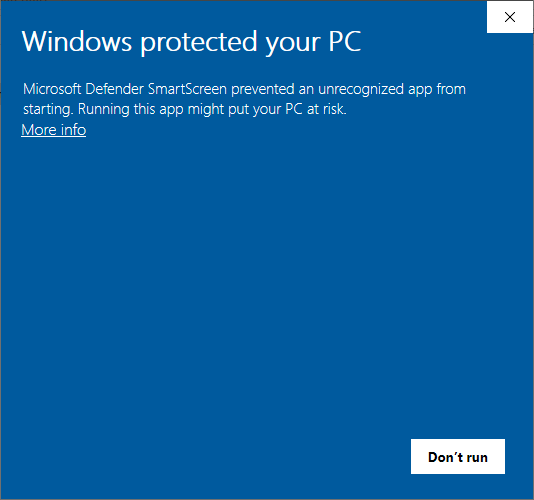
Click More info. The dialog then shows the two lines that matter, and a second button:
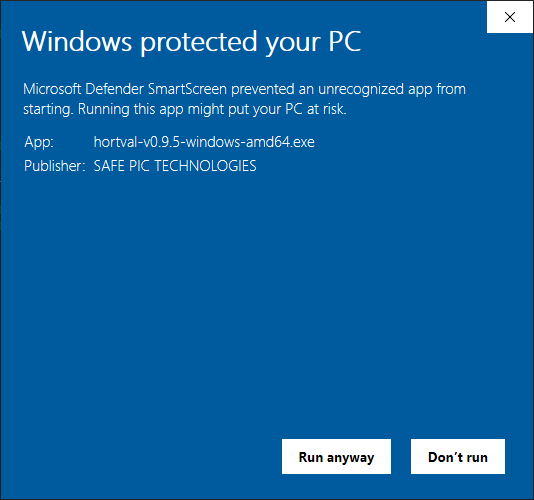
Publisher must read SAFE PIC TECHNOLOGIES. If it reads "Unknown
publisher", the file you are about to run is not the one that was published —
stop there and re-download from the official release page.
An operator who never clicks More info sees only a refusal, which is why this page exists.
On a hardened server there is no Run anyway
If your servers carry the Microsoft Windows Server security baseline — or any policy setting Configure Windows Defender SmartScreen to "Warn and prevent bypass" — the override button is removed on purpose. More info still shows the publisher, so the identity check above still works, but there is nothing to click through:
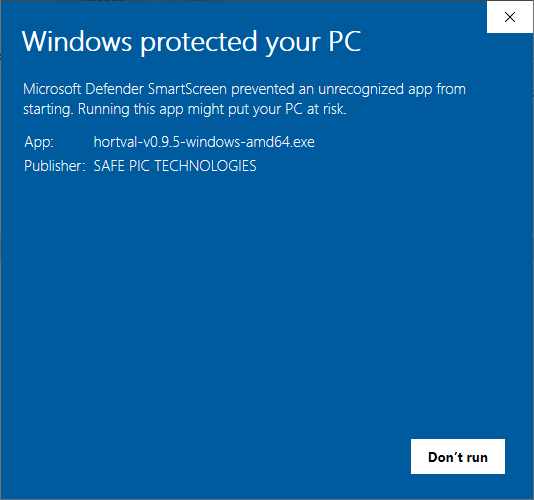
That is a policy decision, not a fault in the download, and it is a reasonable one. Two ways forward, both normal administration:
- Clear the Mark of the Web, which is what raises the prompt in the first
place: Properties → Unblock on the file, or
Unblock-File .\hortval.exein PowerShell. A file that never carried the mark — fetched withcurl.exe, copied from an internal share, deployed by your distribution tool — never reaches this dialog at all. - Allow it in AppLocker or WDAC with a publisher rule, which is available precisely because the binary is signed.
The registry equivalent of that policy, if you need to confirm what a machine
is running: HKLM\SOFTWARE\Policies\Microsoft\Windows\System with
EnableSmartScreen = 1 and ShellSmartScreenLevel = Block.
Unblocking the download
Do these in order. Unblocking is not a way around a security control — it is you asserting where the file came from. That assertion is only worth anything once you have checked the signature, so check it first.
1. Verify the signature (this is the actual control):
Get-AuthenticodeSignature .\hortval-vX.Y.Z-windows-amd64.exe | Format-List Status,SignerCertificate
Status must be Valid and the signer SAFE PIC TECHNOLOGIES. If it is
not, stop — nothing below applies to a file you cannot identify.
2. Remove the Mark of the Web. Either way works, and both do the same thing:
Unblock-File .\hortval-vX.Y.Z-windows-amd64.exe
or in Explorer: right-click the file → Properties → General tab → at the bottom, tick Unblock → OK.
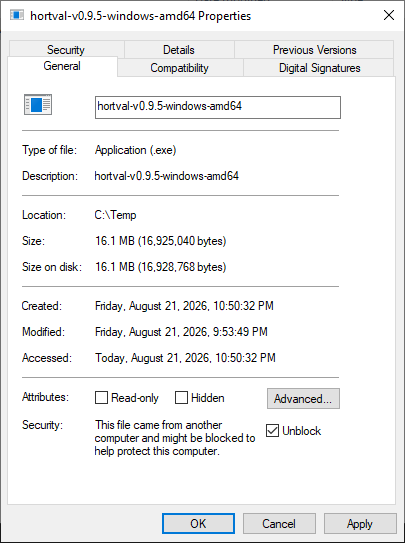
The checkbox is only there while the mark is, so its absence means there is nothing to remove.
For a folder of files: Get-ChildItem *.exe | Unblock-File.
3. Confirm the mark is gone:
Get-Item .\hortval-vX.Y.Z-windows-amd64.exe -Stream *
Zone.Identifier should no longer be listed. The binary now starts without a
prompt — including on a server where Run anyway was never offered.
The prompt comes from how the file was fetched, not from what it is. Pulling
the release with curl.exe, Invoke-WebRequest, an internal mirror or your
software distribution tool leaves no Mark of the Web — so Windows stays silent,
and nothing was checked. Steps 2 and 3 become unnecessary; step 1 does not.
That is the case where verifying matters most, not least. An internal channel is precisely where a substituted binary travels without ever meeting a warning, and the silence reads exactly like an approval.
Hortval runs on a host that enrols certificates against your CA. Treat its binary the way you treat anything else you put on a Tier-0 machine: check the signature every time, whatever it arrived through.
Those binaries are not signed, and no GPG-signed SHA256SUMS.asc ships. For
them, SHA256SUMS is authoritative only insofar as you trust the channel you
fetched it from — the official Releases page over HTTPS.
Distribution through signed package repositories, where the package manager verifies without anyone having to ask, is the direction being considered rather than a detached signature nobody downloads.
Verifying a downloaded release
After downloading the three binaries and SHA256SUMS into the same directory:
sha256sum -c SHA256SUMS
Expected output:
hortval-vX.Y.Z-linux-amd64: OK
hortval-vX.Y.Z-darwin-arm64: OK
hortval-vX.Y.Z-windows-amd64.exe: OK
If any line says FAILED, do not run the corresponding binary — re-download it from the official Releases page.
Windows users without sha256sum
On Windows, use the built-in certutil:
certutil -hashfile hortval-vX.Y.Z-windows-amd64.exe SHA256
Compare the printed SHA-256 against the matching line in SHA256SUMS.
What goes wrong, and what to do
| Output | Meaning | Action |
|---|---|---|
sha256sum: WARNING: 1 computed checksum did NOT match | One of the binaries was modified or truncated. | Re-download the failing binary from the official Releases page. |
sha256sum: no properly formatted SHA256 checksum lines found | You're checking the wrong file, or it was corrupted. | Re-download SHA256SUMS itself. |